JamCast
A downloadable tool for Windows
Anything on your PC, into any app that listens to a microphone
Discord, Zoom, Teams and the rest can only hear one microphone. So the moment you want the other end to hear you and something else on your computer, you are stuck installing a virtual mixer and learning its routing matrix.
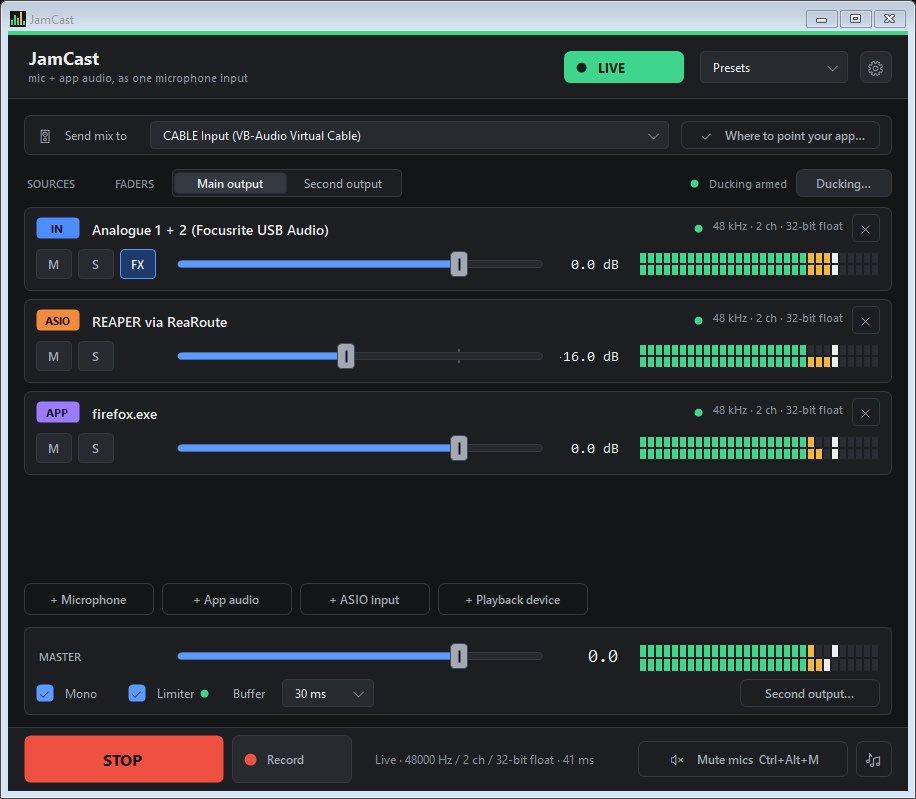
JamCast is one window that does that job and nothing else. Pick your sources, press START. Whatever is listening hears the mix as if it were a single, very well behaved microphone.
What people use it for
Jamming with a band over Discord. Everyone hears the playing as well as the talking, and the music does not arrive sounding like a phone call.
Teaching or learning online. Your backing track, your DAW or your playback software reaches the student as music, instead of through a screen share that mangles it.
Streaming. Game audio, music and voice mixed to taste, with a second output carrying a different balance to OBS than the one in your headphones.
Remote podcasting. Record the call and your own audio, each to its own file, so you can fix the levels afterwards instead of living with them.
What it does
Mixes any number of sources into one input. A microphone, one specific application, an ASIO channel pair, or a whole playback device. Each gets a fader, mute, solo and meter.
Captures a single app on its own. It can take one program by itself rather than recording your whole desktop, so the call never hears itself echoed back to the people on it.
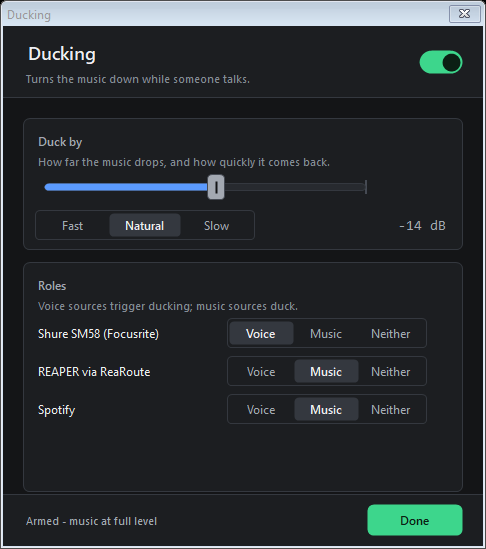
Ducks the music while you talk. The backing steps back automatically and comes back up when you stop. Nobody has to ride a fader mid song.
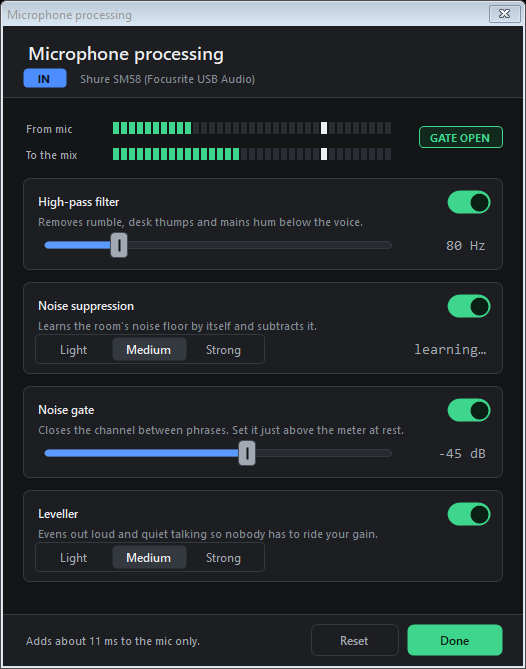
Cleans up your microphone, and only your microphone. Call apps' own noise suppression has to be switched off or it mangles music, so JamCast does the job on the mic channel instead: high pass filter, spectral noise suppression, a gate and a leveller. Measured on the bench, a voice comes through 0.6 dB down while the noise between words drops by more than 20 dB. Everything else in the mix is untouched, bit for bit.
Records the session. The finished mix, plus a separate file per source so you can re balance afterwards. 24 bit, 48 kHz, written on a background thread so a slow disk cannot interrupt the audio.
Push to talk, saved presets for different setups, a second independent output, and a tray icon so it stays out of the way.
If your DAW runs on ASIO, this is the part that matters
ASIO deliberately bypasses the Windows audio engine. That is why it has low latency, and it is also why nothing can capture your DAW from outside while it is using ASIO. Most tools quietly fail here, connecting successfully and recording silence.
JamCast reads ReaRoute, REAPER's own ASIO router. REAPER keeps your interface's ASIO driver for playing and monitoring, so your playing latency does not change at all, and sends the mix down a second driver that JamCast opens. Everything on your master bus goes out: amp sims, virtual instruments, backing tracks, the lot.
There is a built in diagnostic that opens the driver and reports exactly what it finds, so you are never guessing.
Before you download, two honest things
1. You need a virtual audio cable, and it is not included.
Apps can only listen to a recording device, and Windows only lets a signed kernel driver create one. No program can conjure one up, this one included. So JamCast needs exactly one virtual cable installed, and does everything else itself.
If you already run VB-CABLE, Voicemeeter, Virtual Audio Cable or Synchronous Audio Router, you already have what you need. If not, VB-CABLE is free for personal use: https://vb-audio.com/Cable/
VB-CABLE is donationware from VB-Audio, nothing to do with me. It is free at home. VB-Audio ask for a licence if it is used inside a company or a school.
2. Windows will warn you about this download.
You will see:
Windows protected your PC Microsoft Defender SmartScreen prevented an unrecognised app from starting
Click More info, then Run anyway.
This is expected, and it is not a virus warning. Windows shows it for any program that has not been signed with a paid code signing certificate, which runs to a few hundred pounds a year. JamCast is a one person project given away free, so it is not signed yet.
Requirements
- Windows 10 or 11, 64 bit
- A virtual audio cable (free, see above)
- Nothing else. No runtime to install: it uses the .NET already built into Windows, and the program itself is a single file of about 160 KB.
It is free
JamCast is free, and always will be. No trial, no locked features, nothing nags you.
If it saved you an evening of fighting with audio routing, you can leave a tip:
Tips go towards a code signing certificate, which is what makes that Windows warning above go away for everybody.
Download
Install instructions
You need a virtual audio cable first. It is not included.
JamCast hands its mix to Windows as a recording device so that Discord, Zoom, Teams, OBS and the rest can listen to it. Only a signed driver can create one of those, so JamCast cannot provide it and does not install anything on your system.
If you already run VB-CABLE, Voicemeeter, Virtual Audio Cable or Synchronous Audio Router, you are ready to go. If not, VB-CABLE is free for personal use. Install it and reboot: https://vb-audio.com/Cable/
Nothing else is needed. JamCast uses the .NET already built into Windows 10 and 11, so there is no runtime to install.
Which file to take
- JamCast-setup.exe is the normal installer. It needs no administrator rights, so there is no UAC prompt, and it uninstalls from Add or Remove Programs like anything else.
- JamCast.zip is portable. Copy JamCast.exe out of the zip into a real folder before running it, or it will forget your settings each time.
Windows will warn you, and that is expected
You will see "Windows protected your PC". Click More info, then Run anyway.
Windows shows this for any program that has not been signed with a paid code signing certificate. For the same reason, 2 of roughly 70 antivirus engines flag it heuristically. Microsoft Defender, which is what almost everyone actually runs, passes it clean. SHA-256 hashes are on the page above if you would like to check your download is the file I published.
Setting it up, once
- Set Send the mix to to your cable, usually
CABLE Input. - + Microphone and pick your mic.
- Add your music: + App audio for a normal program, or + ASIO input if your DAW is running on an ASIO driver.
- Press START.
- In the other program, set its microphone to
CABLE Output, and turn off its noise suppression, echo cancellation and automatic gain. The Where to point your app button in JamCast lists where that setting lives in Discord, Zoom, Teams, Meet, Slack and OBS.
If something does not work
Double-click SmokeTest.exe, included in the download. It checks every audio path on your machine, takes about twenty seconds and is completely silent. It writes jamcast-report.txt next to itself. Send that file to verveforge@gmail.com and I can usually tell you what is wrong straight away.
Leave a comment
Log in with itch.io to leave a comment.